Setting Up Obsidian with Hermes One
Learn how to install Obsidian, create a vault, and let Hermes One automatically build a full PKM structure — then put it to work finding research for your MBA thesis.
Obsidian is a powerful local-first note-taking app, and when you pair it with Hermes One, you get an AI assistant that can read, write, and organise your notes automatically. This guide walks you through the whole setup in about ten minutes — from a fresh install to a fully structured Personal Knowledge Management (PKM) system.
Before you start
- You need Hermes One already installed and running.
- Download Obsidian from https://obsidian.md/download before following the steps below.
- These screenshots were taken on macOS; the steps are the same on Windows.
Part 1 — Install Obsidian and Create a Vault
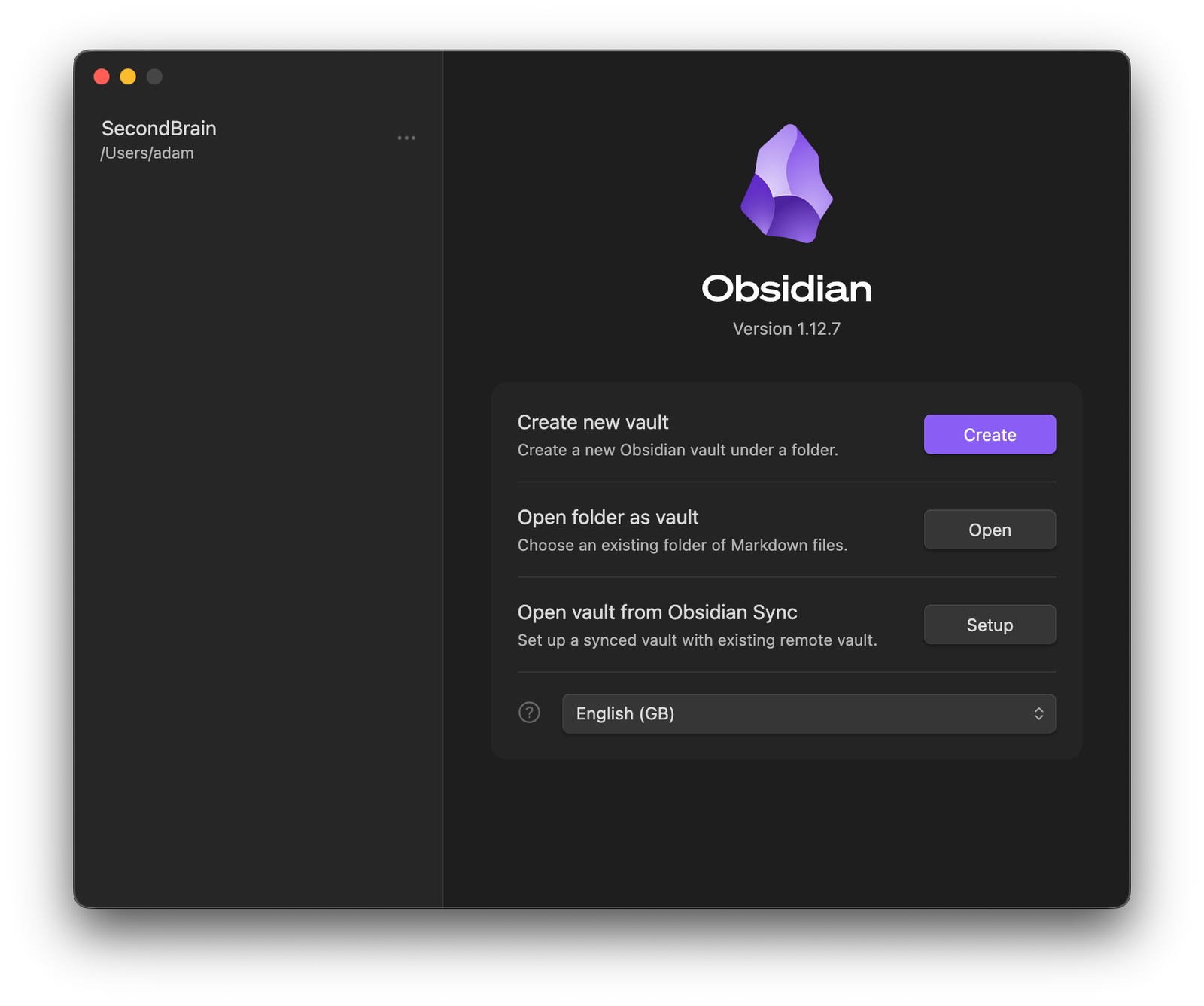
1. Open Obsidian for the first time. After installing, launch Obsidian. You will see the vault picker screen. Click Create next to "Create new vault".

The Obsidian welcome screen showing options to create or open a vault
2. Name your vault and choose a location. In the "Create local vault" screen, set the vault name to Obsidian Vault (this is the default name Hermes One looks for). Set the location to your Documents folder, then click Create.

The Create local vault screen with vault name set to Obsidian Vault and location set to Documents
3. Your new vault opens. Obsidian creates the vault and shows you the default "Welcome" note alongside the Graph view. The vault is empty — Hermes will fill it in the next steps.

Newly created Obsidian Vault showing the Welcome note and an empty Graph view
Part 2 — Check the Obsidian Skill in Hermes One
4. Open Capabilities → Skills in Hermes One. In the Hermes One sidebar, click Capabilities, then select the Skills tab at the top. Search for "Obsidian". You will see the built-in obsidian skill listed under NOTE-TAKING. No configuration is needed — it is ready to use.

Hermes One Capabilities Skills tab with the built-in obsidian skill listed under NOTE-TAKING
Part 3 — Ask Hermes to Build Your PKM Structure
5. Start a new chat and send the setup prompt. Go to Chat in the Hermes One sidebar. In the message box, type the following prompt and send it:
I've installed Obsidian and setup a vault at ~/Documents/Obsidian VaultI need you to setup a suitable PKM system using and use this as the storage vault for all markdown documents in the future. Commit this to memory to ensure it persists across chats

Hermes One new chat with the PKM setup prompt typed in the message box
6. Grant folder access when prompted. macOS will display a permission dialog: "Hermes One" would like to access files in your Documents folder. Click Allow.

macOS permission dialog asking to allow Hermes One access to the Documents folder
7. Wait for Hermes to finish. Hermes One will create a full folder hierarchy and a set of starter notes inside your vault. The response lists everything it created — folders like 00 - Inbox, 01 - Daily Notes, 02 - Projects, a README, templates, and workflow rules based on the PARA method.

Hermes One response listing all folders and notes created in the vault using the PARA method
8. Explore the vault in Obsidian. Switch back to Obsidian. You will see the full folder structure in the left sidebar and a README note open in the editor. The Graph view on the right shows all the new notes already linked together.

Obsidian vault after setup showing PARA folder structure in the sidebar, README note, and a populated Graph view
Part 4 — Put It to Work: MBA Thesis Research
9. Ask Hermes to create a project and find articles. Back in Hermes One, send a follow-up message asking it to set up a project for your MBA thesis and search for relevant articles. For example:
Create a project for my MBA Thesis — we'll store our notes here so we can refer back to it in the future. Then search online for ten recent articles about the challenges Chinese businesses face when expanding overseas (出海).

Hermes One chat with a follow-up prompt asking to create an MBA Thesis project and find overseas expansion articles
10. Check the results in Obsidian. After Hermes finishes (time varies depending on the model and tools), switch back to Obsidian. Inside 02 - Projects → MBA Thesis → Resources, you will find individual notes for each article, each formatted with title, authors, source, URL, a summary, and key ideas discussed.

An Obsidian note created by Hermes showing a full summary of a CEIBS article on Chinese overseas expansion
You're all set
Your Obsidian vault is now connected to Hermes One. Every time you ask Hermes to remember something, draft a note, or do research, it will save the results directly into the right folder in your vault. The PKM structure it built will grow with you throughout your studies.

Adam Maguire Wilson
AI & robotics advisor — China & the world
Adam Maguire Wilson is a Western technologist in Hangzhou — the city behind DeepSeek, Qwen, Unitree and Deep Robotics. Fluent in both the Chinese and global technology ecosystems and beholden to neither, he helps Western teams understand what China is really building, and Chinese teams understand the world beyond it — across model strategy, agentic systems, and the unglamorous engineering that makes AI dependable in production. Away from the screen, he is a photographer and PADI Divemaster.
More about the authorRelated reading
Setting Up a Scheduled Task in Hermes
Learn how to create a scheduled task in Hermes so your AI agent runs automatically on a timer — no manual triggering required.
Setting Up Hermes: A Step-by-Step Guide
A beginner-friendly walkthrough for installing the Hermes local AI agent, patching the common incomplete install, and wiring up a provider (Kimi and MiniMax) — with every screen shown in order.