Setting Up a Scheduled Task in Hermes
Learn how to create a scheduled task in Hermes so your AI agent runs automatically on a timer — no manual triggering required.
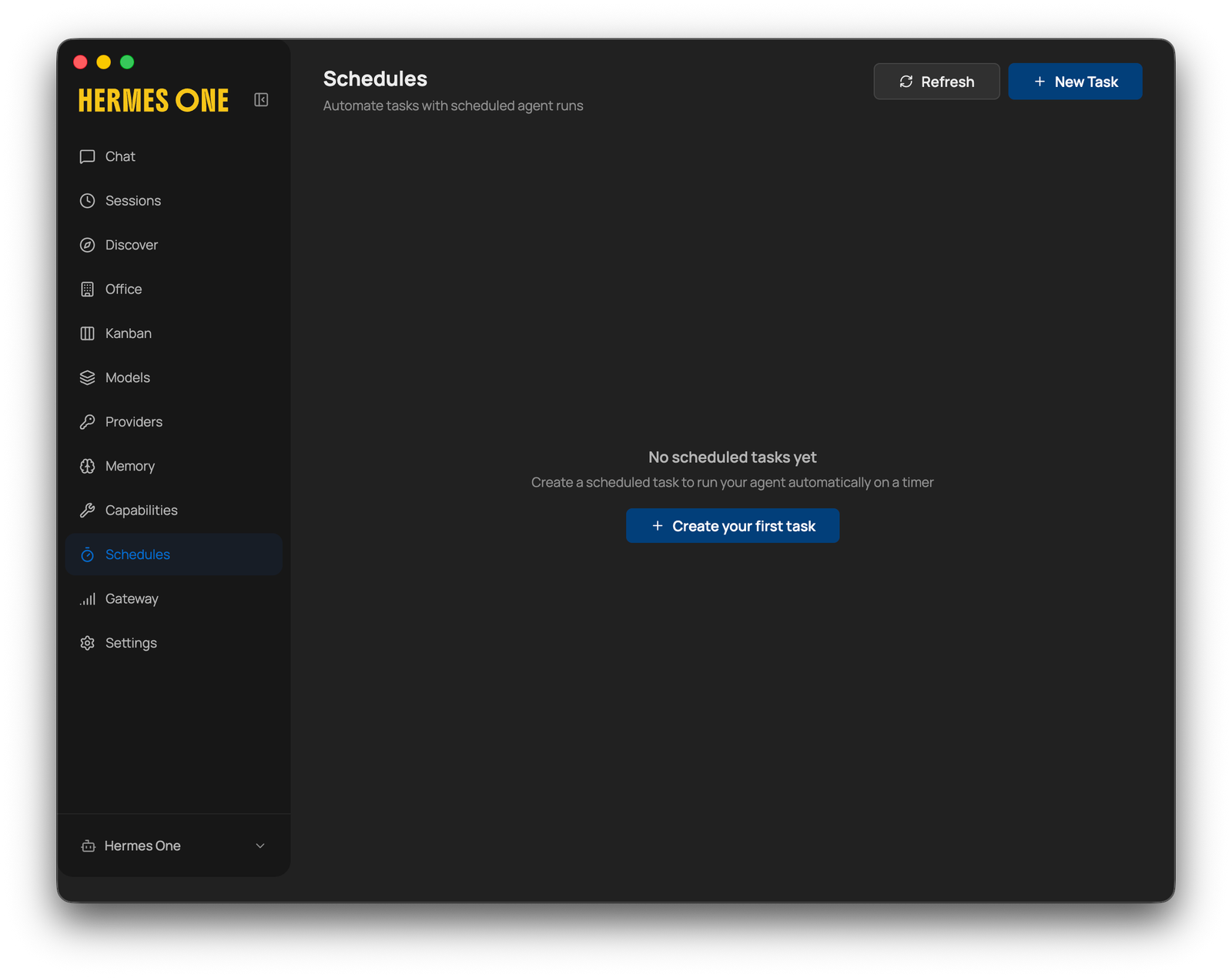
Hermes lets you set up scheduled tasks — automated agent runs that fire on a timer, just like a cron job. This means you can have your agent search the web, summarise news, write to your vault, or do anything else, completely hands-free, every day at the same time.
Before you start
- You have Hermes (Hermes One) installed and open.
- You have at least one AI provider configured so the agent can actually run.
- You know roughly what you want the agent to do and how often.
Finding the Schedules screen
1. Open Schedules. In the left sidebar, click Schedules. If you have not created any tasks yet, you will see the empty state: "No scheduled tasks yet." There is a + Create your first task button in the centre, and a + New Task button in the top-right corner. Either one opens the same creation dialog.

The Schedules screen in Hermes One — empty state with a prompt to create the first task
Creating a new task
2. Open the New Task dialog. Click + New Task (top-right) or + Create your first task. A modal titled New Task appears with fields for Name, Frequency, Execution Time, Prompt, and Deliver To.
3. Fill in the task details. Complete each field:
- Name — give the task a clear, descriptive name. Example:
Daily 出海 Search. - Frequency — choose how often the task runs:
Minutes,Hourly,Daily,Weekly, orCustom. The example uses Daily. - Execution Time — set the time you want the task to run. Example:
09:00. - Prompt — write the instruction your agent will follow each run. Example: "Search for the latest 出海 news from the past 24 hours, store the detailed results in my vault and send me a high level summary each morning."
- Deliver To — choose where results are sent. The example uses Local (delivered inside Hermes).
Once you are happy with the settings, click Create.

The New Task dialog filled in with a name, Daily frequency, 09:00 execution time, a natural-language prompt, and Local delivery
Confirming the task is active
4. Check the Schedules list. After clicking Create, the dialog closes and you are returned to the Schedules screen. Your new task appears as a card showing the task name, the next scheduled run time, a truncated preview of the prompt, a green Active badge, and action icons to edit, pause, or delete the task.
The task will now run automatically at the time you set — no further action required.

The Schedules list showing the newly created task with an Active badge and the next scheduled run time
Tips
- You can create as many scheduled tasks as you like — one per topic, frequency, or workflow.
- To pause a task without deleting it, click the pause icon on the task card.
- Write your prompts the same way you would write a regular Hermes chat message — detailed, natural language works well.
- If your agent has access to your vault, include "store the results in my vault" in the prompt to build a running archive.

Adam Maguire Wilson
AI & robotics advisor — China & the world
Adam Maguire Wilson is a Western technologist in Hangzhou — the city behind DeepSeek, Qwen, Unitree and Deep Robotics. Fluent in both the Chinese and global technology ecosystems and beholden to neither, he helps Western teams understand what China is really building, and Chinese teams understand the world beyond it — across model strategy, agentic systems, and the unglamorous engineering that makes AI dependable in production. Away from the screen, he is a photographer and PADI Divemaster.
More about the authorRelated reading
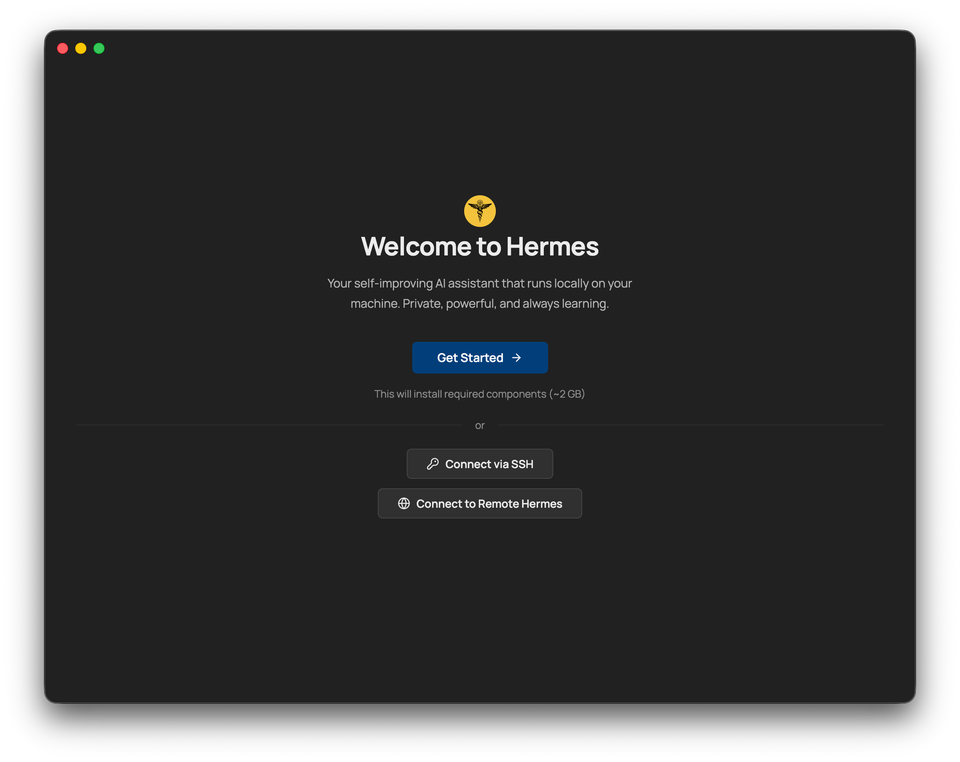
Setting Up Hermes: A Step-by-Step Guide
A beginner-friendly walkthrough for installing the Hermes local AI agent, patching the common incomplete install, and wiring up a provider (Kimi and MiniMax) — with every screen shown in order.
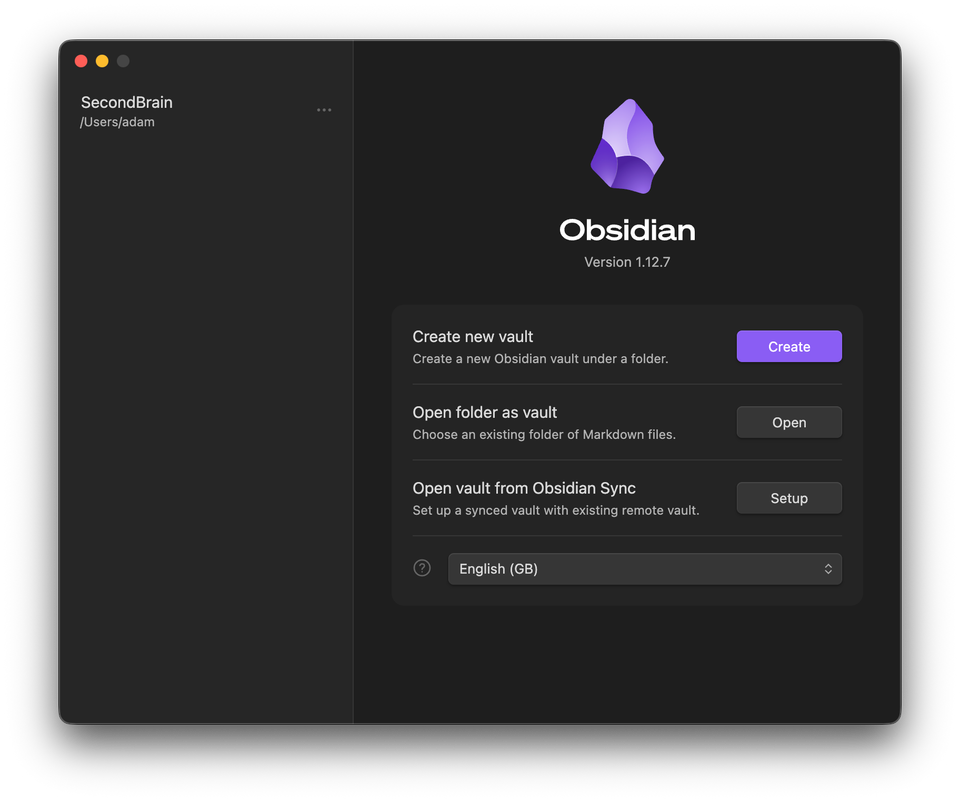
Setting Up Obsidian with Hermes One
Learn how to install Obsidian, create a vault, and let Hermes One automatically build a full PKM structure — then put it to work finding research for your MBA thesis.